Install on Shopify
Every Shopify order you ship yourself goes through the same steps: pack it, buy a label, mark it fulfilled with the tracking number, and let Shopify tell the customer. Each step is simple. The trouble starts when one gets skipped, like a fulfilled order without tracking. Here's how it fits together.
The order statuses that matter
- Unfulfilled: every new order starts here.
- In progress: you can mark an order this way while you pick and pack it.
- On hold: you or an app paused it; it can't be fulfilled until the hold is released.
- Partially fulfilled: some items have shipped, others haven't.
- Fulfilled: every item in the order has shipped.
Fulfilling an order by hand
- In your Shopify admin, open the order.
- In the Unfulfilled section, click Mark as fulfilled.
- Enter the tracking number from your carrier. Shopify might recognize the format and pick the carrier for you; if not, choose it from the list.
- Leave Send a notification to the customer checked. The option only shows when the order has the customer's email address.
- Click Mark as fulfilled.
An order can have more than one tracking number, but they all have to be from the same carrier. If you ship without a tracking number, Shopify can't follow the package, and you mark the order delivered yourself.
Which emails your customer gets
- Shipping confirmation: sent when the order is fulfilled.
- Shipping update: sent when you add or change tracking on an order that's already fulfilled.
- Out for delivery and Delivered: sent when Shopify gets that tracking event from the carrier or the fulfillment app. Shopify notes that the source and timing of tracking events vary by carrier.
So the tracking number does more than fill a field. Without it, Shopify has no carrier events to send the later emails from, and customers are more likely to write in asking where their order is.
Where labels come from
You can buy labels in your Shopify admin, or with a shipping app connected to your store. One order at a time, the admin is enough. With many orders a day, an app saves the copying: it reads your unfulfilled orders, buys the labels, and sends the tracking back so Shopify marks each order fulfilled and sends the shipping confirmation.
Whichever you use, print on a label printer if you can. 4×6 thermal labels are the standard; see 4×6 thermal labels, explained.
Habits for a smooth shipping day
- Fix addresses before you buy. A wrong address costs a label, a delay and a support email.
- Ship split orders as split. If one item is on backorder, fulfill what you have. The order shows Partially fulfilled, and the customer gets tracking for what's on its way.
- Keep the shipping confirmation on. It's the email customers look for first.
- Batch the day. Print all labels at once, pack, then hand everything to the carrier in one go. A USPS SCAN form lets the carrier scan one barcode for the whole day.
Shipping Shopify orders with Muvo
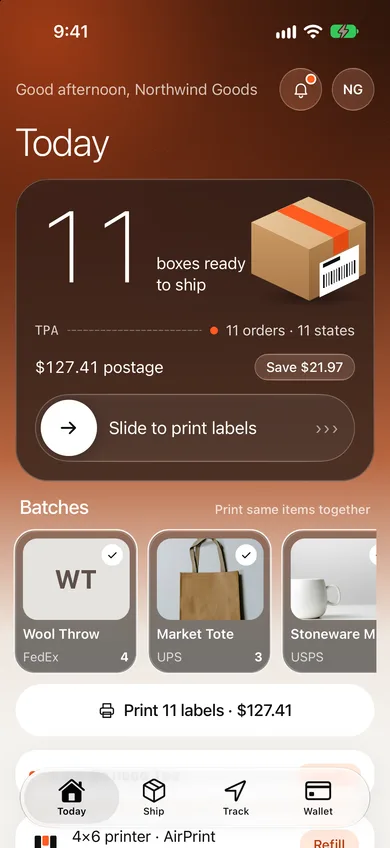
Muvo's Shopify app lives inside your Shopify admin, and the same account opens at app.shipmuvo.com and in the Muvo phone app. Orders sync on their own. Save a box and weight for each product once, and Muvo picks the box and the cheapest qualifying rate for every order.
Select the day's orders and print the batch in one file. When a label is bought, Muvo sends the tracking number back to Shopify and the order is marked fulfilled with tracking, so Shopify can send the shipping email. At your cutoff, or when you press Done for today, Muvo makes the USPS scan form and books the free USPS pickup.
The Free plan connects one store; Pro connects up to five. Not on Shopify? Muvo also connects WooCommerce, or you can bring orders in by CSV.
Muvo has no monthly fee on the Free plan. See pricing for the label fee and what Pro adds, or create a free account and connect your store.
Sources: Shopify Help Center, Understanding your order statuses, Fulfilling your own orders individually and Setting up customer notifications. Shopify's admin changes over time, so labels and menus may differ slightly.